How to Create a Botanical Dark Teal Menu Board
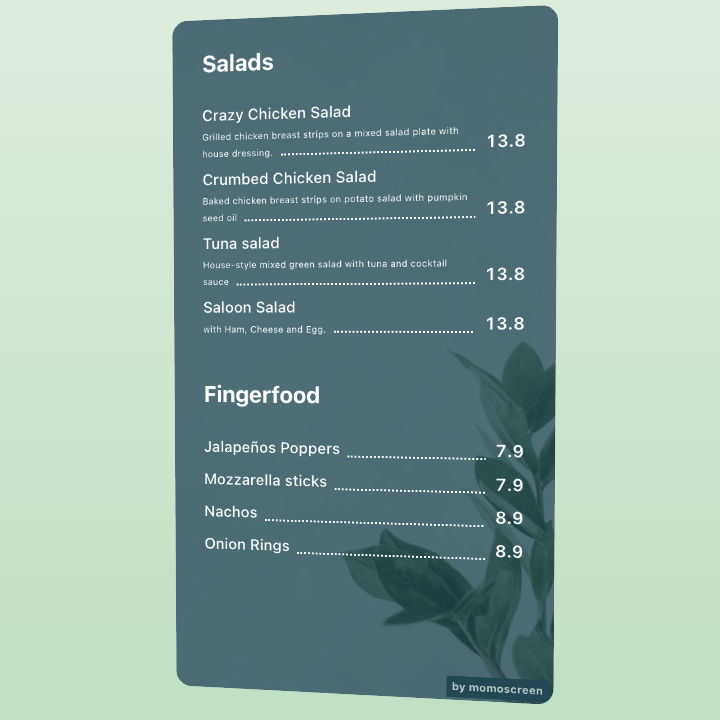
In this tutorial you'll learn how to set up an elegant menu board with a deep teal background, bold category headings, dotted price leaders, and a decorative botanical illustration. Before you start, make sure you're logged in and have at least 2 menu categories created with their items and prices ready.
Step-by-step
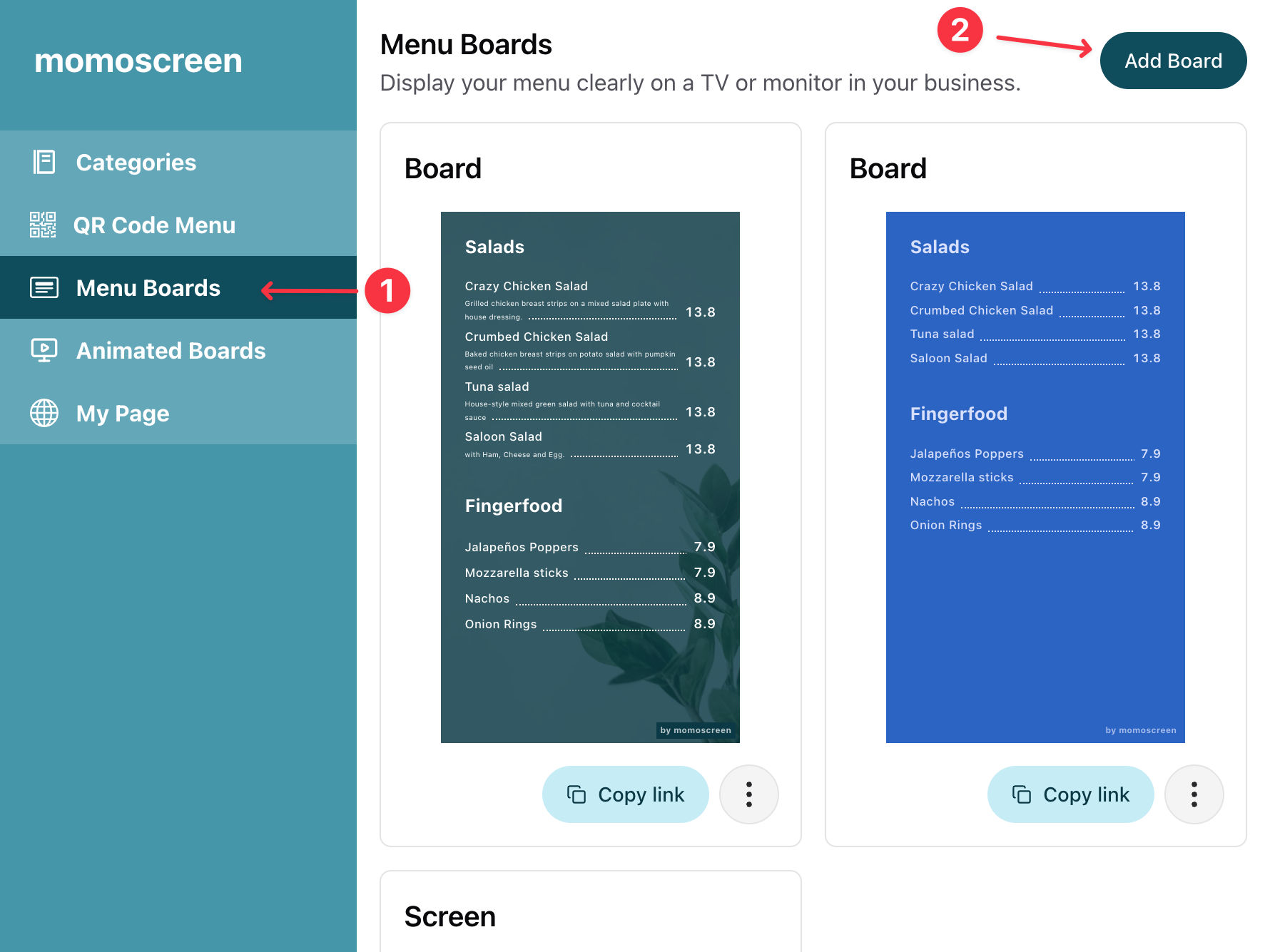
Open Menu Boards
Navigate to "Menu Boards" in the sidebar and click "Add Board" to get started.
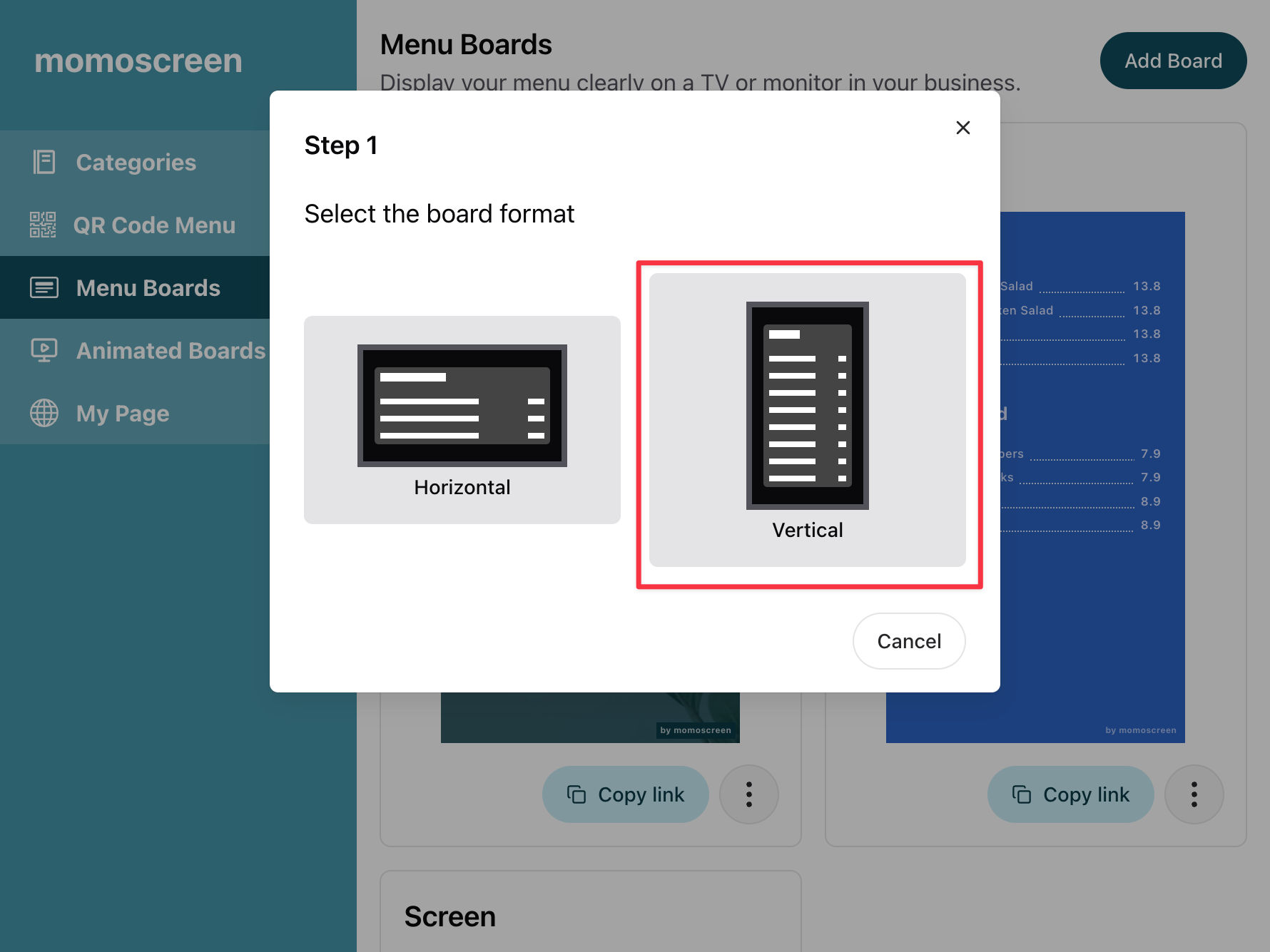
Choose a Board Format
Select either a vertical or horizontal layout for your board. For this example, we go with the vertical format.
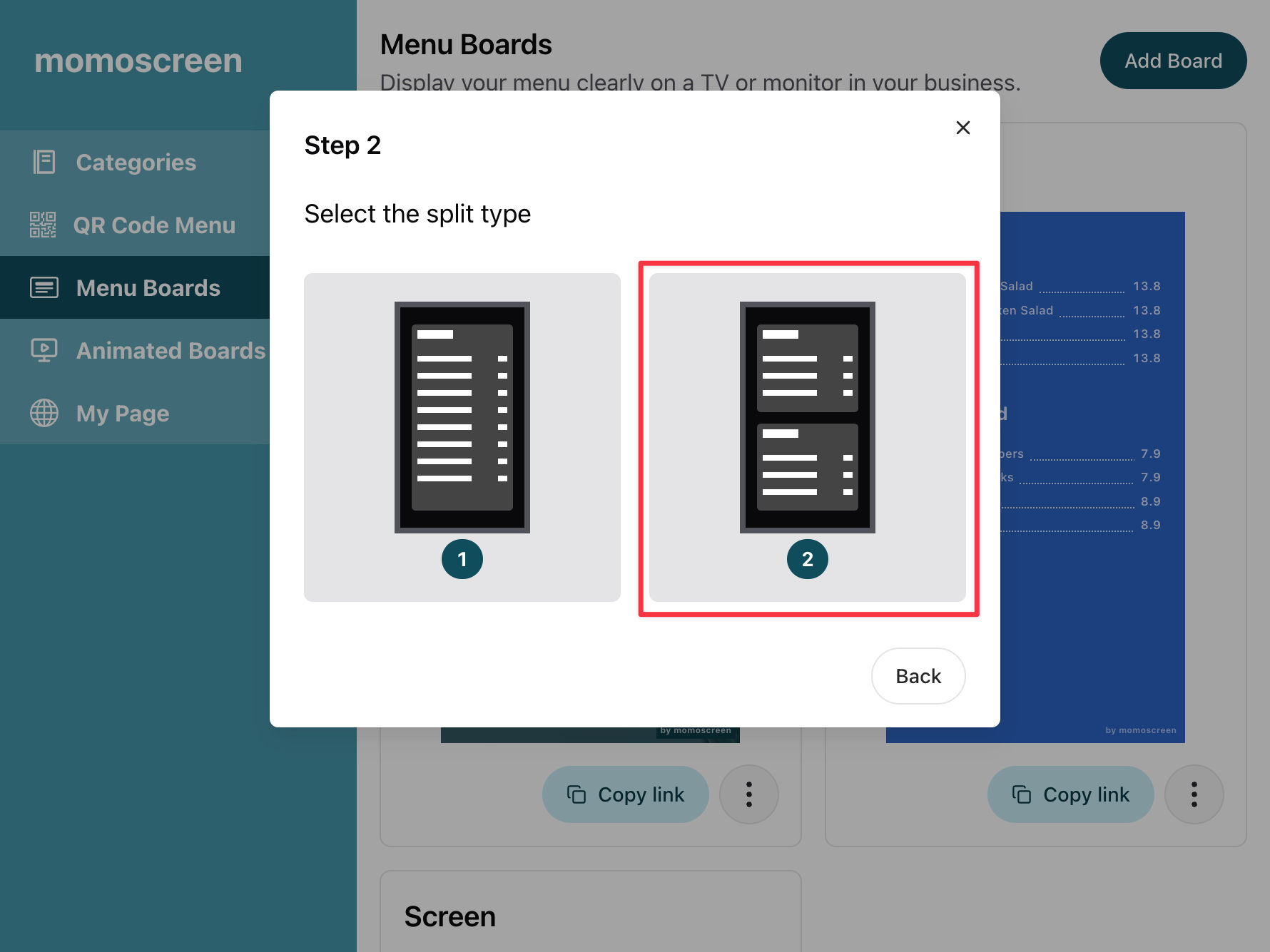
Pick a Split Type
Decide how many menu categories you want to show on the board — one or two stacked on top of each other. We'll go with two for this example.
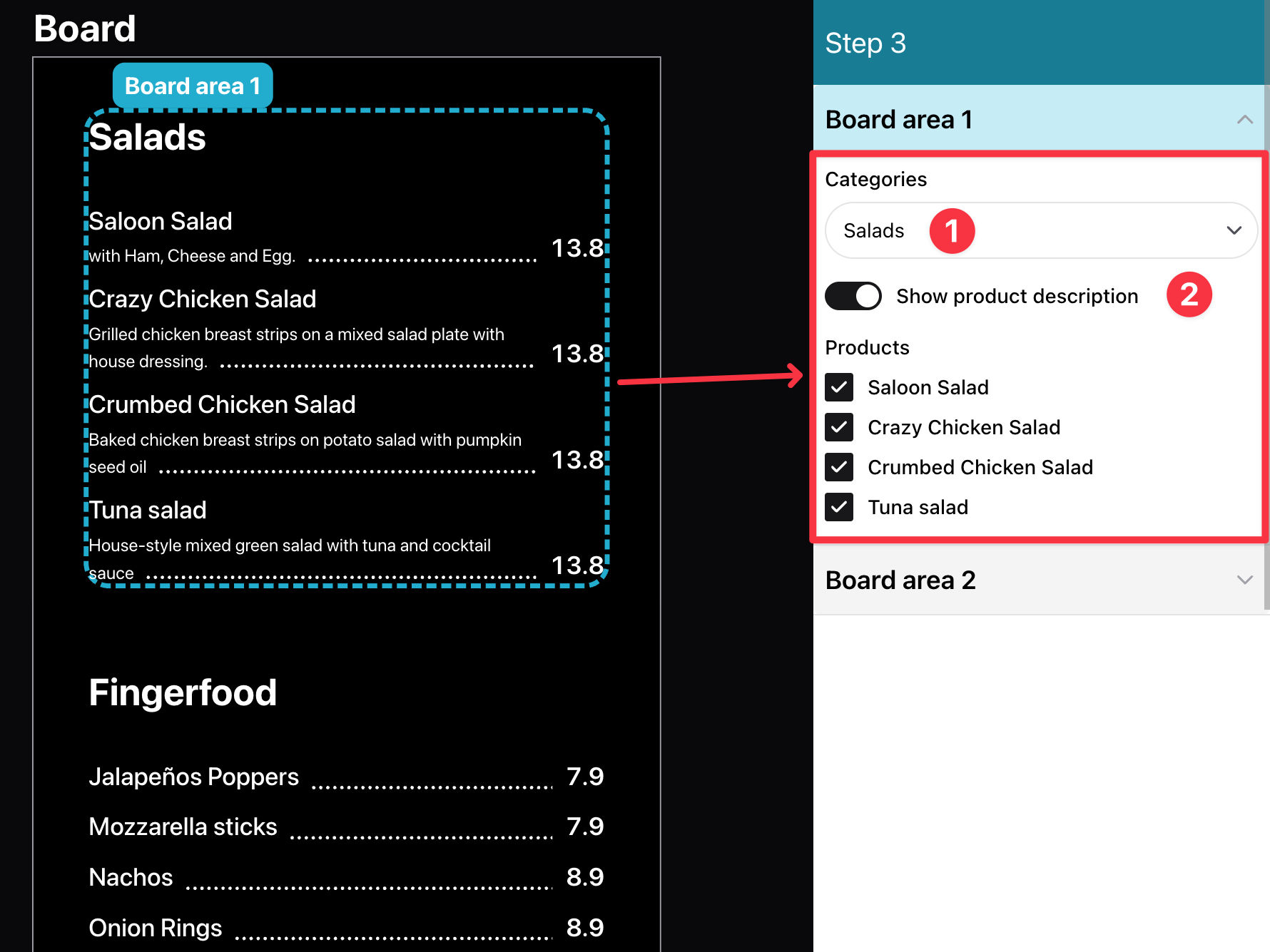
Select Your Menu Categories
Choose which menu categories and products you want to display. You can also decide whether to show the product description or not. Once you're happy with the selection, click Next.
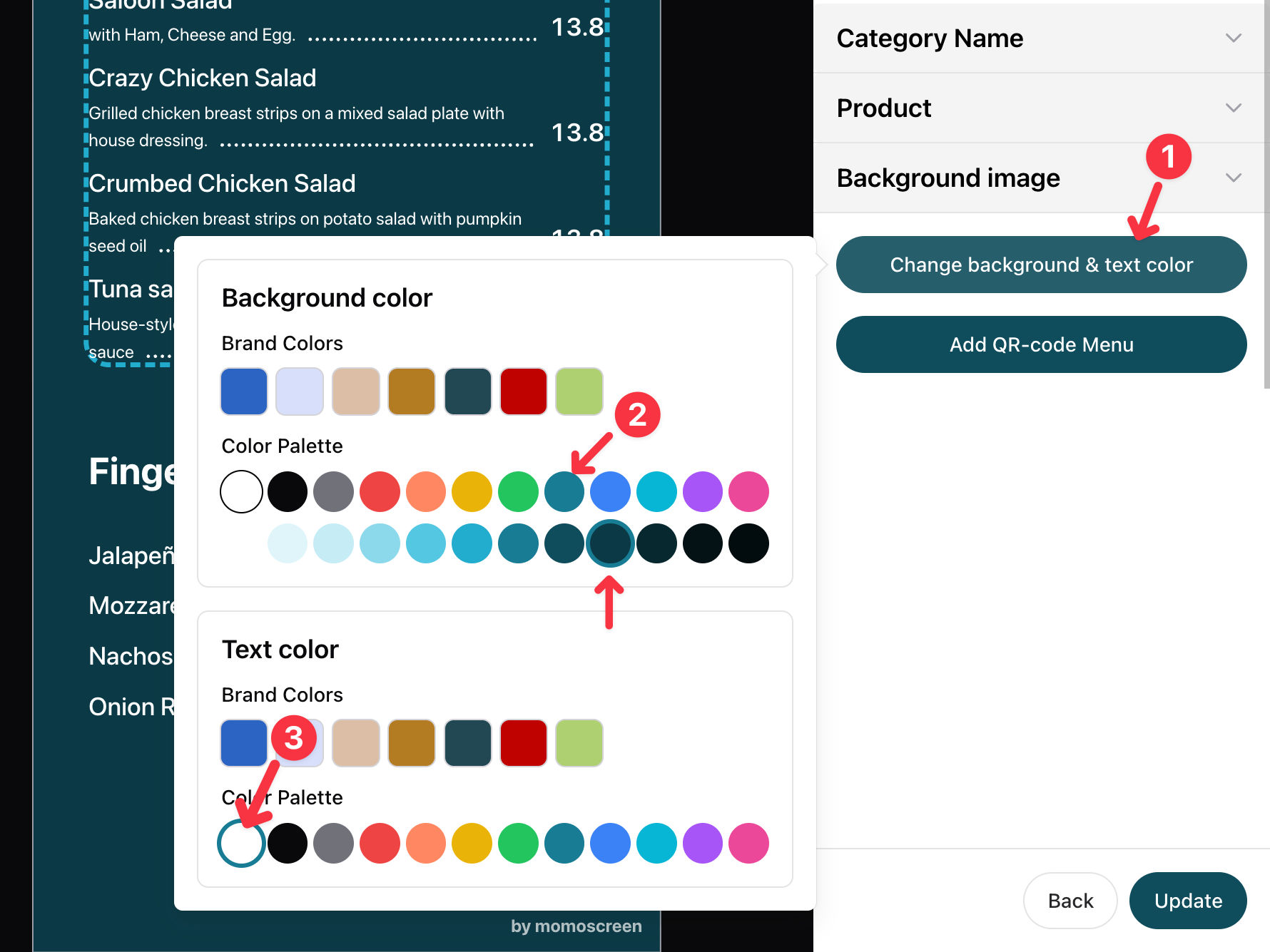
Color Your Menu Board
Click "Change Background & Text Color" and pick Teal as the background and white as the text color.

Add a Background Image
Open "Background Image", go to "Select from Collection" → "General" and pick the botanical plant image. Lastly, lower the opacity to 20 so the image blends softly into the background.
Save & Done!
Hit Save — your menu board is ready! It will now appear on your screen looking clean and professional.
Good to know
You can upload any image you like as the background — just use your own photo or branding instead of the collection image. And don't worry about keeping things up to date: any changes you make to your menu categories, like updating a price, renaming a dish, or editing a description, will automatically show up on your board.
Ready to impress your guests?
Start building your menu board now — 100% free — and give your restaurant a professional, eye-catching display in just a few minutes.